

Like skimming Netflix, you ever go to the Lesson Picker and look around at radicals and kanji and vocabulary for so long that you run out of time to learn any of them? Or at least, have you ever thought: “I wish WaniKani would make decisions for me so I don’t have to.”
“Batch, Please” Button
Introducing the “Batch, Please” button, which lives in the Advanced Lessons section (aka the “Lesson Picker.”).
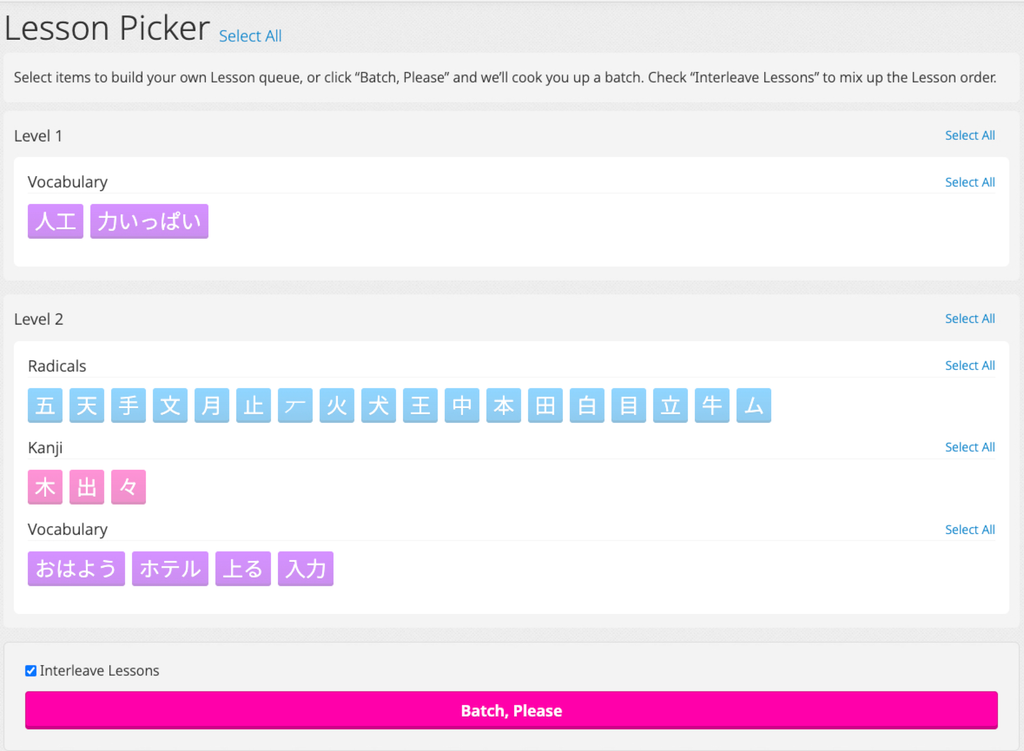
There are two important features to note:
- If you press the button, we’ll select a batch of lessons for you and take you straight to them. Each time you finish a batch, you’ll be given the option to start another batch if you want, to infinitum (or until you run out of Lesssons, whichever comes first). Batch size is determined by your preferred lesson batch size in your Settings.
- Perhaps the most important feature, the button has a “please” on it and is therefor allowing you to show some much needed respect and filial piety to the app.
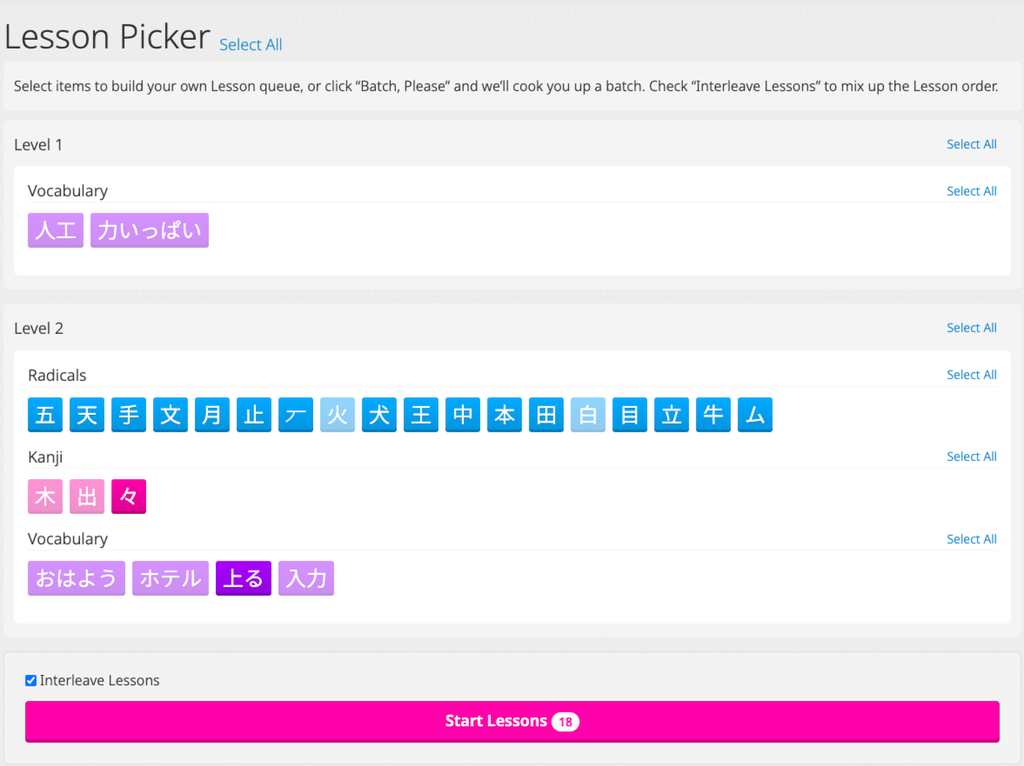
If you still prefer to select your own items, you can still do so and the Batch, Please button will revert to the Start Lessons button, and show the count of how many items you’ve selected.
“Interleave Lessons” setting
In addition to the “Batch, Please” button, you may now choose to interleave or not interleave your Lessons. Simply check or uncheck the Interleave Lessons box on the Lesson Picker page to switch your Lessons from Interleaved to Level Order, and vice versa.
If the Interleave Lessons checkbox is checked, the items will be arranged so that you get a mix of radicals, kanji, and vocabulary in each batch. If unchecked, the items will be ordered by level first, then item type, and then by the lesson order we set on each item.
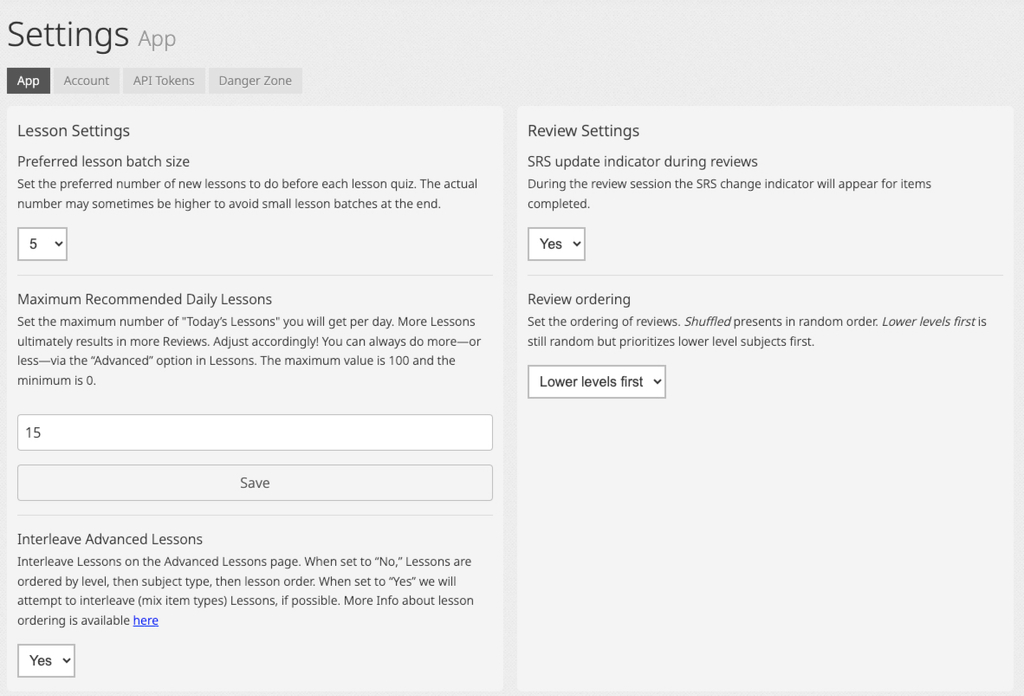
You can also set your default setting to interleave lessons from your Settings page:
Interleaved is good because later on, when these items are making their way through Reviews, they will be more likely to be mixed up in terms of their item types. It’s a bit harder (learning is hard, don’t forget!), but switching between types (this is called interleaving) will force you to switch between things, and clear your working memory more so that you’re practicing a purer recall when the next item comes up (or comes back up). This mixing should also create more serendipitous situations during your Reviews. Seeing two different items with a connection between them in the same review session helps to strengthen those connections, thus strengthening the memory.
Plus, it breaks up the drudgery of having to review a hundred vocabulary in a row. Mix it up. Spice up your life. Live Más.
So the point is, we recommend interleaving where you can. It’s a little harder, but it’s helpful in the long term.