

You may have noticed that your dashboard looks a little different. Something like this.
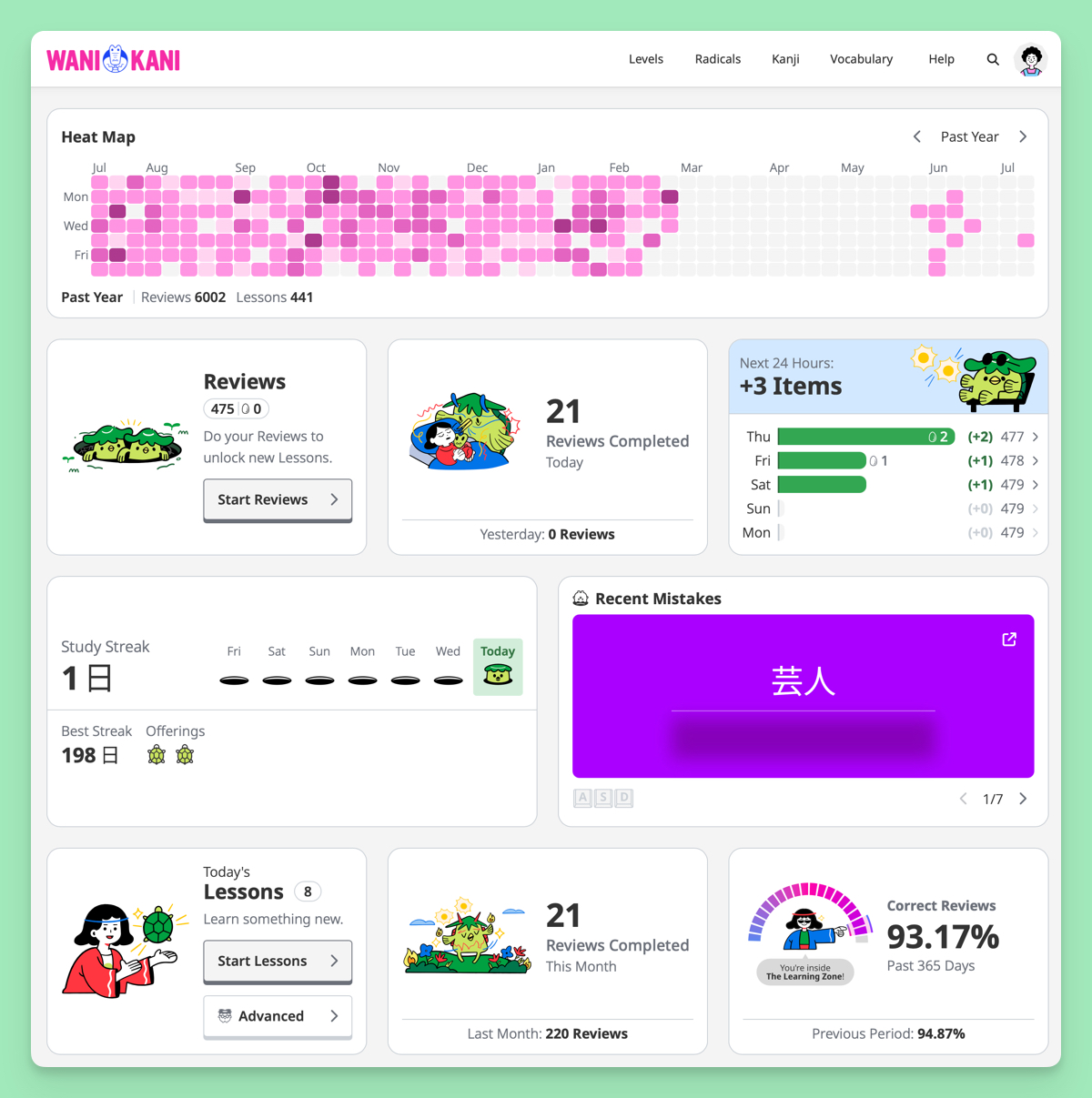
Let me give you the rundown of what’s new:
- The Dashboard is now just a bunch of “widgets” (you can call them “widgies” if you want. That’s what I call them. The person who built this feature is from New Zealand, in fact. So he is always wondering why I am referring to the Australian / New Zealand youth subculture from the 1940s—sorry, I digress, let’s keep going with widgie features).
- Widgets may be added.
- Widgets may be removed.
- Widgets may be moved around.
- Widgets may be loved and cared for.
- Many widgets come in multiple variants. Play around with them, see what you like.
- Most even let you choose the widget’s color palette.
Some widgets are entirely new features. Take a look and go find them. Nothing’s more exciting than foraging for widgies.
You can make the dashboard of your dreams so long as those dreams are reasonably small and include only the widgets currently available to you and nothing else. Should you dream of widgets yet to be, you’re welcome to share those ideas with us and maybe we’ll eventually make them.
Customize Your Dashboard
Current WaniKani learners shouldn’t see too much change. We made your dashboard look as much like the old one as we could. If you like the old dashboard, you can leave it as is. It will stay similar (ish) to what you’re used to.
But should you want to defy the gods, then take my hand. Let us stare into the durtle hole together and unleash powers humanity was never meant to wield. Are you ready?
Click your avatar in the top-right corner of your WaniKani Dashboard.
Now select “Customize Dashboard.”
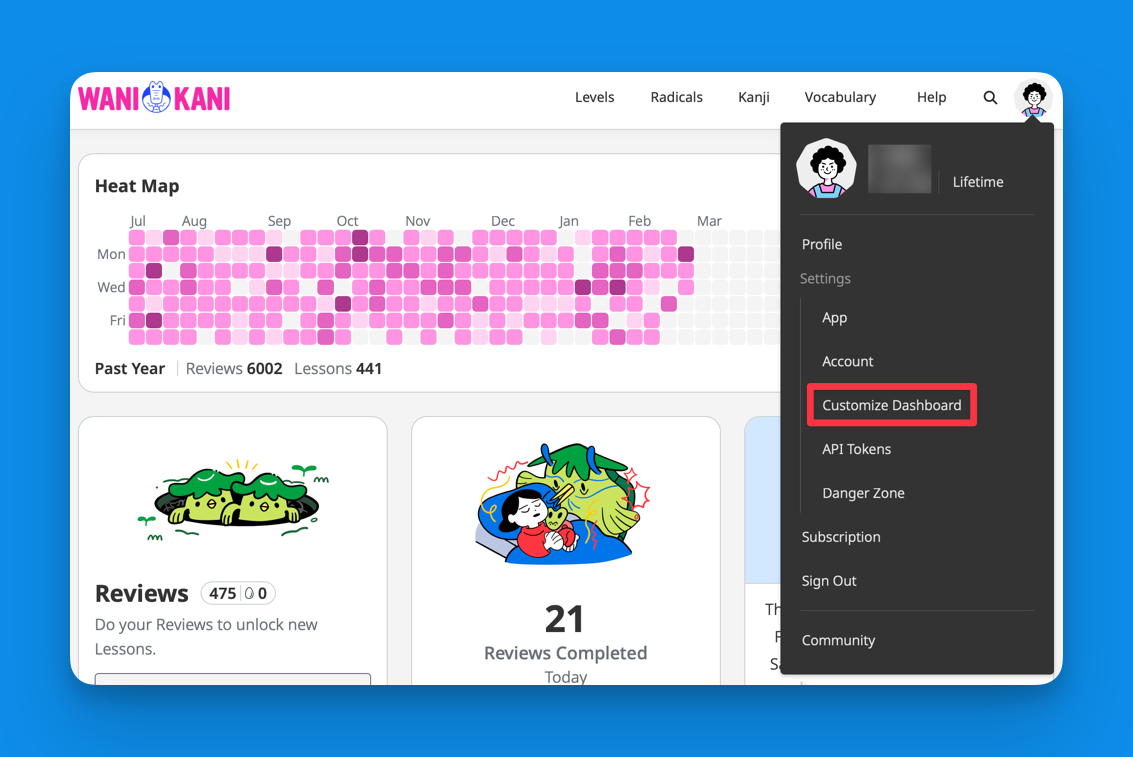
From here, you can add, remove, and move dashboard widgets. (Changes will save automatically.)
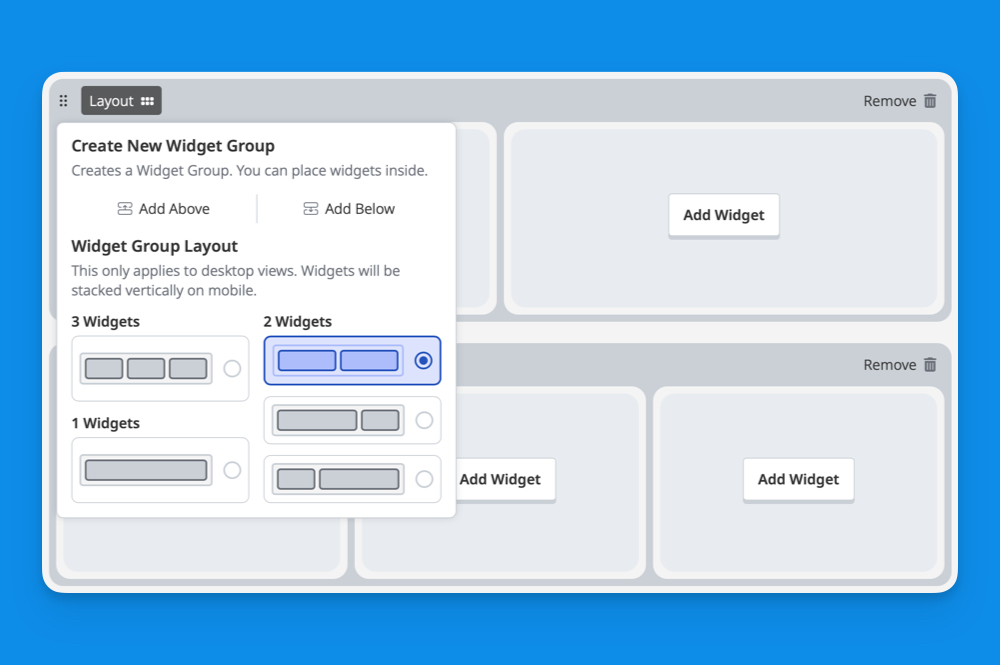
It’s a bit wonky, but I think you’ll be able to figure it out. We kind of thought, “Should we create the greatest UI of all time—or assume people won’t spend much time in the customization screen and just make something that works well enough?” I think you can guess which direction we went.
Stumbling around the Customize Dashboard screen will be kind of fun, right? We don’t get that many opportunities to explore new places or things these days. In my experience, the Internet is 99% spoilers for TV shows I’ve never seen but plan to watch. So I’m not going to tell you what kind of widgets there are and let you take your own leap. Think of using the new dashboard and dashboard customizer like picking up a hitchhiker. It’s a bit exciting. Oh, what are all those reddish stains on his shirt?
But if you’re the type who reads the instruction manual before using something new, then by all means, we’ve written up the new widget features, including how to customize widgets, in the knowledge guide.
Here are a few general things to know before you dive in:
- Widgets live in rows.
- You can add, remove, and reorder both rows and widgets.
- On mobile, rows will probably stack vertically, unelss you’ve got one of those folding phones. Then you’re in uncharted territory. Who knows what will happen.
- Use the “Layout” option to add rows or change widget ratios.
- During customization, widgets use dummy data. Your real data will appear when you return to your dashboard. Sorry, you don’t have a “best streak” of 1,024 days. Or maybe you do. I don’t know you.
- Changes save automatically.
- Select the WaniKani logo to go back to your dashboard.
- “Restore to Default” will (I’m like 90% sure) revert your dashboard to the new user default. Not the dashboard we gave everyone that’s trying to copy the old dashboard. So, be careful I guess.
I won’t spoil all the new features, new widgets, and the other fun bits and bobs. It’s more fun to discover them for yourself.
Can I See Your Dashboard?
After you go in there and customize your dashboard, can you post a screenshot on this thread in the Community? I’m curious, and I think others would like to see, too.
Also, if you think “I wish I had this widget,” please email us at hello@wanikani.com, too. We’ve got a list going.